
Do take a look at our wonderful ‘proudly South-African” site, http://e-classroom.co.za, that provides a delightful array of FREE beautifully created worksheets for our South African teachers. This site, e-Classroom, has reached over 500 000 hits and is the number one “e-classroom” website on Google!
 e-Classroom is a portal which provides free support resource material for educators and parents and is aimed at learners in Grades R-3. Their content is very much in line with 21st century learning, and the worksheets are creative and promote motor skills. These cover the subject matters of Maths, English, Science, Health and Nutrition, Life Skills, Art and Craft. This is all open source and provided to users via their website at no cost.
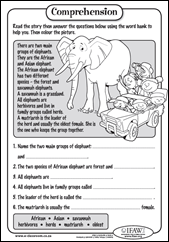
Do take a look around. You’ll see the Foundation Phase CAPS documents have been posted there, and the worksheets are out of this world! These worksheets could save teachers a LOAD of time…something every teacher needs! I am sure the learners will love using them as not only are they beautifully presented, but they are fun to work with.
One of the new sections that I absolutely LOVE is called ‘Learn to draw’. The learners can practise drawing all sorts of animals using these methods. This is found within the ‘Latest Content’ section where you can browse and see what is on offer that might interest you.
Save our elephants petition
I noticed this petition form called ‘Save our elephants’ petition on the website on behalf of the IFAW Animal Action Team, encouraging world leaders to uphold and enforce the ban on ivory trade. That’s a good cause to make known to our learners and be involved in right now.

The site owners say “This initiative is open to all primary schools nationally in South Africa and we welcome constructive feedback participation from educators and parents.” I am sure they would welcome your comments. Let them know what you think.


Do take a look around. You’ll see the Foundation Phase CAPS documents have been posted there, and the worksheets are out of this world! These worksheets could save teachers a LOAD of time…something every teacher needs! I am sure the learners will love using them as not only are they beautifully presented, but they are fun to work with.
One of the new sections that I absolutely LOVE is called ‘Learn to draw’. The learners can practise drawing all sorts of animals using these methods. This is found within the ‘Latest Content’ section where you can browse and see what is on offer that might interest you.
Save our elephants petition
I noticed this petition form called ‘Save our elephants’ petition on the website on behalf of the IFAW Animal Action Team, encouraging world leaders to uphold and enforce the ban on ivory trade. That’s a good cause to make known to our learners and be involved in right now.


