Google Slides is a great for creating e-books. We created them as part of a Natural Disasters project in Grade 7. Each students chose a different project. I outlined the instructions in Google Classroom.
This is what we did:
First we created the template for the e-book as shown below. https://goo.gl/kKJss7
The task
I provided the task in a Google Doc and we discussed it at length https://goo.gl/UwyyFu . We also revised how to research and how to provide links to the material used.
Examples
The students did these really well. Here are a few examples:

Sunday, August 28, 2016

Saturday, August 27, 2016
Hyperdoc poetry lesson: If I were in charge of the world
I came across this lovely lesson idea on Laura Chandler's wonderful poetry page: http://www.lauracandler.com/filecabinet/literacy/poetry.php : At the bottom of the page she has a section called:
Poetry Multimedia Project - If I Were In Charge of the World
"Idea submitted by Radene Girola
Last year one of my newsletter subscribers described a wonderful multimedia project she does with her students. She uses PhotoStory 3 which can be downloaded for free from Microsoft, but other multimedia programs would work as well. Radene has her students take the poem "If I Were in Charge of the World" by Judith Viorst and asks them to rewrite it in their own words and create a PhotoStory. She sent me a sample PhotoStory she created for her students, and I have her permission to post it online. Please be aware that this file requires Windows Media Player, and if you have a Mac you might not be able to view the file. (Download the free VLC player fromhttp://vlc.us.com and that should allow you to view it.) She also sent me her lesson overview. I have omitted the original poem by Judith Viorst due to copyright concerns, but you can order the book from Amazon.com or look for it in your library. Take a look at Radene's sample PhotoStory and prepare to be inspired! This would make a great end-of-the-year project! If you have questions about this activity, feel free to contact Radene at radene.girola@comcast.net."
I felt this would make a perfect lesson for my Grade 6 class and I decided to create a Hyperdoc lesson.
The original Hyperdoc:


Poetry Multimedia Project - If I Were In Charge of the World
"Idea submitted by Radene Girola
Last year one of my newsletter subscribers described a wonderful multimedia project she does with her students. She uses PhotoStory 3 which can be downloaded for free from Microsoft, but other multimedia programs would work as well. Radene has her students take the poem "If I Were in Charge of the World" by Judith Viorst and asks them to rewrite it in their own words and create a PhotoStory. She sent me a sample PhotoStory she created for her students, and I have her permission to post it online. Please be aware that this file requires Windows Media Player, and if you have a Mac you might not be able to view the file. (Download the free VLC player fromhttp://vlc.us.com and that should allow you to view it.) She also sent me her lesson overview. I have omitted the original poem by Judith Viorst due to copyright concerns, but you can order the book from Amazon.com or look for it in your library. Take a look at Radene's sample PhotoStory and prepare to be inspired! This would make a great end-of-the-year project! If you have questions about this activity, feel free to contact Radene at radene.girola@comcast.net."
I felt this would make a perfect lesson for my Grade 6 class and I decided to create a Hyperdoc lesson.
Reusing an already created Hyperdoc
I found a suitable Hyperdoc that someone had already created called "If I were President" which I copied into my own Google Drive. https://goo.gl/I87EyJ . I then changed it: https://goo.gl/zCj4QP
The original Hyperdoc:

My changed Hyperdoc:

Examples
I was really thrilled with the poems my students created. They used images and their own voice with created music.
Example 1:
Example 2:
Thursday, August 18, 2016
Do you know this free Google App for making downloadable collages - Fotojet?

Today I wanted to make some online collages in order to save space with photos in a blog post I was writing. I noticed that on the Google Chrome Web Store there is an app called Fotojet, so I added it to my Google Chrome Apps and tried it out. I really like it. Fotojet is a free online collage maker, graphic designer and photo editor. It claims that it can turn your photos into a work of art! You can also find Fotojet online at https://www.fotojet.com/app.html .
Here’s how I used it once I had opened the app online.
1. Click on Make a Collage

2. Select Classic Collage
When the collage page opens there is quite a choice, I was pleased to see. However, I decided to select Classic Collage to suit my purposes.
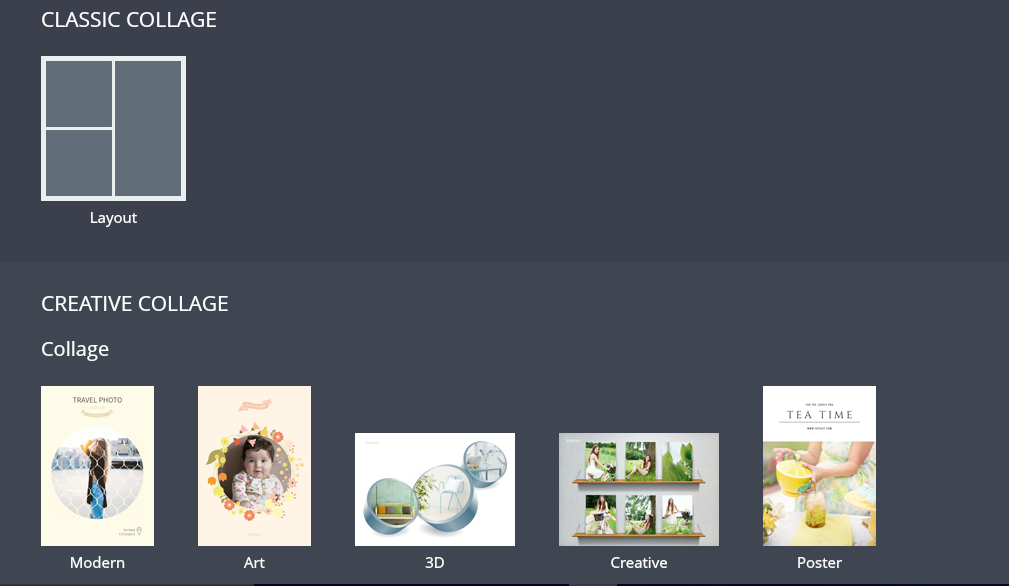
3. Choose your template
There was a great choice of classic template designs.

4. Select your template option and add your photos to Fotojet.com
When you add the photos you have the option of choosing from Facebook or choosing from your computer. The photos I need I saved on my computer so I took that option.

5. Save, share or print your collage
Above the collage you create are the options to Save, Share or Print your selection. I selected Save and it immediately gave me a number of options for the Name, Quality and Size of the photo.
Above the collage you create are the options to Save, Share or Print your selection. I selected Save and it immediately gave me a number of options for the Name, Quality and Size of the photo.

6. Do you want to share your image on social media?
You also get the option to share your image on social media should you wish to.
You also get the option to share your image on social media should you wish to.

This is a great app for making colleges. I really recommend it. I can't wait to try out all the different options it offers.
Subscribe to:
Posts (Atom)