Google Chrome is a really good browser to use and I want ot make sure my students know all its benefits. Today's task centred around learning how to use Google Chrome to search for information one needs for completing school tasks.
Here is the presentation we used in class
Exploring Google Chrome
a) We signed in to Google Chrome yo create our own profiles
b) We added some useful extensions - Diigo bookmarking, Google Dictionary, Text to Speech, Google Translate, Basic calculator, Google similar pages,
c) We tried out some of the useful search tips using Chrome's omnibox
Short Videoclips we watched today
These are lovely. The students enjoyed watching both of them.
a) Chrome fun
b) Google search highlights 2012

Wednesday, October 9, 2013

Try using this very useful tool, Padlet, to collect student responses
Padlet can be described as an ‘online graffiti wall where teachers and students can have discussions, share web links, post notices, collect feedback, or watch and share videos’.
(http://classroom21.ncdpi.wikispaces.net/Padlet)
A teacher poses a question or thought on the padlet they have created, and students’ responses appear like little sticky notes scattered around on the padlet. The biggest plus is that students do not need to sign in to write on the wall.
How to create a Padlet for your class to write on (by Fiona Beal)
Here are some step by step instructions to help you get started.
Great new features in Padlet
Richard Byrne on Free Technology for Teachers points out some great new features:
1. You can moderate all notes before making them public
2. A new group blog option was added.
3. Padlet offers an option to download the contents of your walls as PDFs, images, Excel, or CSV files. Once downloaded you can print the contents of your walls.
4. Padlet has a Chrome app too.
How can a Padlet be used in a classroom setting?
1. Use Padlet for introductions
I recently used Padlet for students to introduce themselves and say what they are hoping to learn. It worked really well. There are a myriad of uses for this application.
2. Use Padlet as a KWL chart
Ask students to share anonymously what they know and what they want to know about a topic.
3. Use Padlet for group research
Let the students add videos and notes about their research on a particular topic.
4. Use Padlet as a showcase of your students’ work
Let your students add links to their various online creations
5. Use Padlet as a book review platform
Let students write their comments on a chapter they have read.
6. Use Padlet as a thankyou wall
Let your students thank speakers or a special teacher or anyone you choose to and email them the link.
In fact here are 32 ways to use Padlet in the classroom (started by Jen Hughes). This was created when Padlet was still called Wallwisher.
Try Padlet - you'll love its simplicity and versatility.
Saturday, October 5, 2013
[Grade 7} Icebreakers for getting to know my new Grade 7 class
I have been out of the classroom for two years! I am now volunteering at a small school near where I live as their ICT Technology teacher - and I am am ever so excited. Of course I wanted to get to know them! So, after introducing myself we played the 3-2-1 game. I got this idea from a lovely Slideshare by Shelley Terrel http://www.slideshare.net/ShellTerrell/10-getting-to-know-you-activities-for-teens-adults

Task 1: Icebreaker" The 3-2-1 game
This idea is adapted from the Slideshare above. I have used one of the pictures in the Slideshare and changed it by adding my own categories.
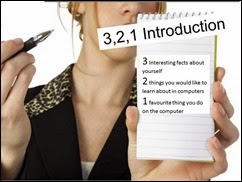
Each person shared:
3 interesting things about yourself
2 things you'd like to be able to do in computer lessons
1 favourite thing you already do on the computer.
Task 2: Complete a Google form
The students then completed this Google form with information about themselves for my eyes only.
An interesting video we watched in class
It was a great lesson! Yay!

Task 1: Icebreaker" The 3-2-1 game
This idea is adapted from the Slideshare above. I have used one of the pictures in the Slideshare and changed it by adding my own categories.

Each person shared:
3 interesting things about yourself
2 things you'd like to be able to do in computer lessons
1 favourite thing you already do on the computer.
Task 2: Complete a Google form
The students then completed this Google form with information about themselves for my eyes only.
An interesting video we watched in class
This was introduced after
asking the class what they think students of their age are learning about
technology in other parts of the world. We watched an 11 year old keynote speaker
speaking on technology
It was a great lesson! Yay!
Subscribe to:
Posts (Atom)