Every week I like to keep a record of what educators and others are posting with regard to Google. Here are 19 from this week. Teachers will love these.

Monday, November 30, 2015

Friday, November 20, 2015
African Storybook Project #1: The African Storybook project and me!
The African Storybook Project is a wonderful Literacy website with a wide range of stories from Grades 1-3 learners in a multitude of African languages. Visit www.africanstorybook.org to see the amazing spread. The stories and folktales have beautiful illustrations, can be read online or they can be downloaded as PDFs and made into hand-held books. Best is that the African Storybook Project is OER and uses Creative Commons licensing which enables the books to be adapted if so desired.

I was privileged to be involved with this project for a couple of years, creating and running digital storytelling courses for teachers in South Africa and then Africa in order to populate the website. In this post I want to link to some the posts I wrote about this memorable experience for the SchoolNet blog.

I was privileged to be involved with this project for a couple of years, creating and running digital storytelling courses for teachers in South Africa and then Africa in order to populate the website. In this post I want to link to some the posts I wrote about this memorable experience for the SchoolNet blog.
- The free, online African Storybook Project’s 2014 Digital Storytelling course for teachers in Africa has been completed
- The African Storybook website and Grade 3 students - using the story circle idea
- Grade 2 students love reading the stories on the African Storybook website
- An exciting, free digital storytelling course and writing opportunity for educators starting 21 July. Please sign up…
- Teachers please sign up for a free ‘Digital Storytelling for the African Storybook Project 2014’ online course starting on 21st July…
- 10 takeaways from the Multilingual Resources for Early Literacy Development Symposium on 3rd and 4th June
- Update on the exciting African Storybook Project…
- Teacher selected to accompany the African Storybook Project team to Nairobi!
- The African Storybook Project downloadable brochure
- More about the African Storybook project and the free online course starting on 15th April. Please join us..
- An exciting, free digital storytelling course and writing opportunity for South African educators. Please sign up…
- Welcome to the African Storybook project
Thursday, November 19, 2015
Love Google #33
Submitted by Fiona Beal
Every week I like to keep a record of what educators and others are posting with regard to Google. Here are 15 from this week. Teachers will love these.
1. Ten engaging Google Drawings activities for classes
http://goo.gl/aU05S3
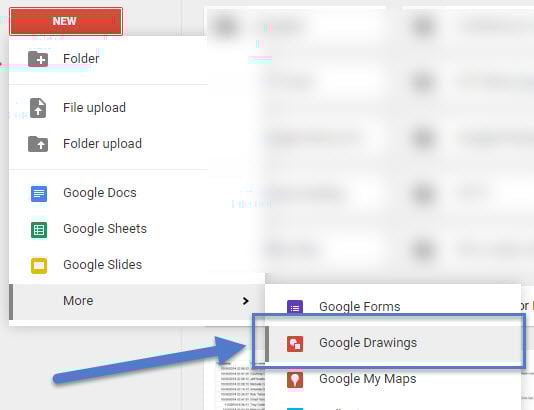
Matt Miller says, “Drawings is one of my favorites of all of Google’s tools. It’s simple to use but powerful and very versatile. In fact, here’s how simple it is. The button panel for creating things (see image above) is made up of lines, shapes, text boxes, images and comments. (The arrow is for selecting items on the page.) Google Drawings is like a digital poster board. Or sheet of paper. Or a blank slate waiting for your great ideas. Sadly, many educators don’t know about it or know what it does. Maybe part of the reason: when you click “new” in your Google Drive, Drawings is under the “more” tab. (What a shame … one of my favorite Google tools treated like a second-class citizen.)”
2. Eight Great Google Tips for Every Educator
http://goo.gl/ajZkDN
This post has eight great tips for educators plus it shows the video below.
3. Seven new features added to Google Classroom
http://goo.gl/bHPfn7
Google Classroom is improving all the time. Here are the latest improvements:
1. Post Questions
2. Reuse Assignments
3. Improved Calendar Integration
4. Bump a post
5. Due dates optional
6. Attach a Google Form to a post
7. YouTube Functionality
4. 8 Creative Uses of Google Drawings You Shouldn’t Ignore
http://goo.gl/EyazTH
Google Drawings isn’t at the forefront of tools. The limelight is reserved for Docs, Sheets, and Slides. But let’s do a reawakening of sorts and click on More to go to the “neglected” siblings. We have seen the usefulness of Google Forms. It’s time to appreciate the versatility of Google Drawings.

5. A Good Google Drive App for Creating Photo Collages
http://goo.gl/ky9V9s
Educational Technology and Mobile learning says, “Here is an excellent Chrome app for creating photo collages. Loupe Collage is a web based tool that is integrated with Google Drive and enables users to easily create beautiful photo collages. Loupe Collage supports a wide variety of shapes. You can turn your photos into hearts, animals, words, logos and many more. You can even draw your own shapes and add them to your collages.”

6. How to make Google Chrome faster, better and prettier
http://goo.gl/GcPovh
Vicky Davis says, “ant to know how to make Google Chrome faster? Want to feel productive? Tired of all of those tabs? Take time to learn how to use Google Chrome better. These quick tips will have your Google Chrome browser faster like new in no time!”

7. Viral classroom: 10 ways to harness viral video power in class
http://goo.gl/uN5gpT
This post by Matt Miller shows some YouTube videos that have gone viral which could be used in your lessons. he says, “If these videos are “must-share” videos, there must be something about them that hooks us in and doesn’t let us go. If we want lessons in our classes to be memorable learning experiences, maybe there’s something in these videos that we can use to leave our students captivated. (Or at least paying attention … we’ll settle for that!). Here are 12 viral YouTube videos and something about them that we can use to hook students into our lessons:

8. Our Favorite Animals - A Google Slides Introduction
http://goo.gl/gKzMev
Richard Byrne shows how he introduces young students to Google Slides. He says, “I've had the opportunity to introduce Google Slides to students as young as first grade. Our Favorite Animals is the title of one of my go-to activities for teaching Google Slides to young students. Here's how the activity works.”

9. Edit images right in Google Slides and Drawings
http://goo.gl/abCj89
Google Slides and Drawings make it easy for you to tell a story and share your ideas. And a big part of storytelling is the images you use to bring a concept to life. Now it’s even easier to get those images just right, because Slides will let you crop, apply shape masks, and add borders to your images right within your presentation.

10. Seven Ways to Use Google Hangouts in the Classroom
http://goo.gl/vD6sBG
Using Google Hangouts is a great way to connect and collaborate with other classrooms. It’s also a powerful tool for making connections, working collaboratively and introducing the wider world to your students. Many educators have embraced Hangouts to enrich both their students’ learning experiences and their own professional development. You can connect students with their peers from around the country, or even from abroad, if time zone differences permit.

11. Now You Add Color Filters to Images In Your Google Slides
http://goo.gl/o4Oscc
Richard Byrne says, “A few months ago Google added the option to crop and add borders to images within your Google Slides. Beginning today you can now add color filters to your images within your Google Slides. To add these Instagram-like filters to your images insert your images as you always have. After inserting an image click on it and you will see a new "image options" menu in the Slides editing toolbar. See my screenshots below for a visual of where to find the new "image options" menu.”

12. Chromebook Deployment & Best practices
https://goo.gl/RsTQZR
This is a slide deck from the EdTechTeam Saudi Arabia Summit by Karl Hehr.

13. 26 Tips for Teaching with Google Apps from the Gooru
https://goo.gl/SWA8N0
The Gooru says, “This guide will teach you to be as tech-savvy as your students. It is meant to acquaint you with Google Apps’ major features and is loaded with best practices and lots of helpful, actionable tips to optimize your investment in Google Apps and improve your students’ learning experience. It’s appropriate for school IT admins, teachers, principals, and anyone else interested in learning more about Google Apps for education. Start implementing these tips today!”

14. 10+ Ways to Get Students Creating CHROMETASTIC Digital Stories!
http://goo.gl/7HANCn
Karly Moura says, “Digital storytelling is an effective and engaging way for students to use digital media production to show what they know. On November 2nd, #TOSAChat welcomed our second guest moderator Ryan O'Donnell (@creativeedtech) to discuss digital storytelling. TONS of fabulous ideas were shared, way too many for just one blog post, so I decided to start with the great Googley goodness and will follow up with a post all about Digital Storytelling with iPad apps, stay tuned! “
 15. Viral classroom: 10 ways to harness viral video power in class
http://goo.gl/uN5gpT
This post by Matt Miller shows some YouTube videos that have gone viral which could be used in your lessons. he says, “If these videos are “must-share” videos, there must be something about them that hooks us in and doesn’t let us go. If we want lessons in our classes to be memorable learning experiences, maybe there’s something in these videos that we can use to leave our students captivated. (Or at least paying attention … we’ll settle for that!). Here are 12 viral YouTube videos and something about them that we can use to hook students into our lessons:
Every week I like to keep a record of what educators and others are posting with regard to Google. Here are 15 from this week. Teachers will love these.
1. Ten engaging Google Drawings activities for classes
http://goo.gl/aU05S3
Matt Miller says, “Drawings is one of my favorites of all of Google’s tools. It’s simple to use but powerful and very versatile. In fact, here’s how simple it is. The button panel for creating things (see image above) is made up of lines, shapes, text boxes, images and comments. (The arrow is for selecting items on the page.) Google Drawings is like a digital poster board. Or sheet of paper. Or a blank slate waiting for your great ideas. Sadly, many educators don’t know about it or know what it does. Maybe part of the reason: when you click “new” in your Google Drive, Drawings is under the “more” tab. (What a shame … one of my favorite Google tools treated like a second-class citizen.)”
2. Eight Great Google Tips for Every Educator
http://goo.gl/ajZkDN
This post has eight great tips for educators plus it shows the video below.
3. Seven new features added to Google Classroom
http://goo.gl/bHPfn7
Google Classroom is improving all the time. Here are the latest improvements:
1. Post Questions
2. Reuse Assignments
3. Improved Calendar Integration
4. Bump a post
5. Due dates optional
6. Attach a Google Form to a post
7. YouTube Functionality
4. 8 Creative Uses of Google Drawings You Shouldn’t Ignore
http://goo.gl/EyazTH
Google Drawings isn’t at the forefront of tools. The limelight is reserved for Docs, Sheets, and Slides. But let’s do a reawakening of sorts and click on More to go to the “neglected” siblings. We have seen the usefulness of Google Forms. It’s time to appreciate the versatility of Google Drawings.

5. A Good Google Drive App for Creating Photo Collages
http://goo.gl/ky9V9s
Educational Technology and Mobile learning says, “Here is an excellent Chrome app for creating photo collages. Loupe Collage is a web based tool that is integrated with Google Drive and enables users to easily create beautiful photo collages. Loupe Collage supports a wide variety of shapes. You can turn your photos into hearts, animals, words, logos and many more. You can even draw your own shapes and add them to your collages.”

http://goo.gl/GcPovh
Vicky Davis says, “ant to know how to make Google Chrome faster? Want to feel productive? Tired of all of those tabs? Take time to learn how to use Google Chrome better. These quick tips will have your Google Chrome browser faster like new in no time!”

7. Viral classroom: 10 ways to harness viral video power in class
http://goo.gl/uN5gpT
This post by Matt Miller shows some YouTube videos that have gone viral which could be used in your lessons. he says, “If these videos are “must-share” videos, there must be something about them that hooks us in and doesn’t let us go. If we want lessons in our classes to be memorable learning experiences, maybe there’s something in these videos that we can use to leave our students captivated. (Or at least paying attention … we’ll settle for that!). Here are 12 viral YouTube videos and something about them that we can use to hook students into our lessons:

http://goo.gl/gKzMev
Richard Byrne shows how he introduces young students to Google Slides. He says, “I've had the opportunity to introduce Google Slides to students as young as first grade. Our Favorite Animals is the title of one of my go-to activities for teaching Google Slides to young students. Here's how the activity works.”

9. Edit images right in Google Slides and Drawings
http://goo.gl/abCj89
Google Slides and Drawings make it easy for you to tell a story and share your ideas. And a big part of storytelling is the images you use to bring a concept to life. Now it’s even easier to get those images just right, because Slides will let you crop, apply shape masks, and add borders to your images right within your presentation.

10. Seven Ways to Use Google Hangouts in the Classroom
http://goo.gl/vD6sBG
Using Google Hangouts is a great way to connect and collaborate with other classrooms. It’s also a powerful tool for making connections, working collaboratively and introducing the wider world to your students. Many educators have embraced Hangouts to enrich both their students’ learning experiences and their own professional development. You can connect students with their peers from around the country, or even from abroad, if time zone differences permit.

11. Now You Add Color Filters to Images In Your Google Slides
http://goo.gl/o4Oscc
Richard Byrne says, “A few months ago Google added the option to crop and add borders to images within your Google Slides. Beginning today you can now add color filters to your images within your Google Slides. To add these Instagram-like filters to your images insert your images as you always have. After inserting an image click on it and you will see a new "image options" menu in the Slides editing toolbar. See my screenshots below for a visual of where to find the new "image options" menu.”

12. Chromebook Deployment & Best practices
https://goo.gl/RsTQZR
This is a slide deck from the EdTechTeam Saudi Arabia Summit by Karl Hehr.

13. 26 Tips for Teaching with Google Apps from the Gooru
https://goo.gl/SWA8N0
The Gooru says, “This guide will teach you to be as tech-savvy as your students. It is meant to acquaint you with Google Apps’ major features and is loaded with best practices and lots of helpful, actionable tips to optimize your investment in Google Apps and improve your students’ learning experience. It’s appropriate for school IT admins, teachers, principals, and anyone else interested in learning more about Google Apps for education. Start implementing these tips today!”

14. 10+ Ways to Get Students Creating CHROMETASTIC Digital Stories!
http://goo.gl/7HANCn
Karly Moura says, “Digital storytelling is an effective and engaging way for students to use digital media production to show what they know. On November 2nd, #TOSAChat welcomed our second guest moderator Ryan O'Donnell (@creativeedtech) to discuss digital storytelling. TONS of fabulous ideas were shared, way too many for just one blog post, so I decided to start with the great Googley goodness and will follow up with a post all about Digital Storytelling with iPad apps, stay tuned! “

http://goo.gl/uN5gpT
This post by Matt Miller shows some YouTube videos that have gone viral which could be used in your lessons. he says, “If these videos are “must-share” videos, there must be something about them that hooks us in and doesn’t let us go. If we want lessons in our classes to be memorable learning experiences, maybe there’s something in these videos that we can use to leave our students captivated. (Or at least paying attention … we’ll settle for that!). Here are 12 viral YouTube videos and something about them that we can use to hook students into our lessons:
Subscribe to:
Posts (Atom)