
Showing posts with label I love Google. Show all posts
Showing posts with label I love Google. Show all posts
Friday, July 20, 2018
#130 I love Google
After looking through all the Google in Education posts that were shared to my various subscriptions recently, here is a selection that looks useful for teachers who enjoy using Google applications in the classroom http://bit.ly/2uS38n0. (The link to the previous posts can be found at http://bit.ly/2Inr7Q7 and prior to that on the SchoolNet blog at https://goo.gl/CNO3M2)

Wednesday, April 11, 2018
#128 I love Google
After looking through all the Google in Education posts that were shared to my various subscriptions recently, here is a selection that looks useful for teachers who enjoy using Google applications in the classroom. (The link to the previous posts can be found at http://bit.ly/2Inr7Q7 and prior to that on the SchoolNet blog at https://goo.gl/CNO3M2)
Friday, February 9, 2018
I love Google #126
After looking through all the Google in Education posts that were shared to my various subscriptions recently, here is a selection that looks useful for teachers who enjoy using Google applications in the classroom. (I used to write this blog post regularly when I was maintaining the SchoolNet blog, so I am continuing it in the same format. The link to the previous posts can be found on the SchoolNet blog here https://goo.gl/CNO3M2)
 .
.

Saturday, January 16, 2016
I love Google #39
Every week I like to keep a record of what educators and others are posting with regard to Google. Here are 11 from this week.

Great Google posts this week #39

Great Google posts this week #39
View more lists from Fiona Beal
Saturday, January 9, 2016
I love Google #38
Every week I like to keep a record of what educators and others are posting with regard to Google. Here are 10 from this week
Great Google posts this week #38
Great Google posts this week #38
View more lists from Fiona Beal
Saturday, December 19, 2015
I love Google #37
Every week I like to keep a record of what educators and others are posting with regard to Google. Here are 15 from this week.
Great Google posts this week #37

View more lists from Fiona Beal
Saturday, December 12, 2015
I love Google #36
Every week I like to keep a record of what educators and others are posting with regard to Google. Here are 13 from this week.
Saturday, December 5, 2015
I love Google #35
Every week I like to keep a record of what educators and others are posting with regard to Google. Here are 12 from this week.
Monday, November 30, 2015
I love Google #34
Every week I like to keep a record of what educators and others are posting with regard to Google. Here are 19 from this week. Teachers will love these.
Thursday, November 19, 2015
Love Google #33
Submitted by Fiona Beal
Every week I like to keep a record of what educators and others are posting with regard to Google. Here are 15 from this week. Teachers will love these.
1. Ten engaging Google Drawings activities for classes
http://goo.gl/aU05S3
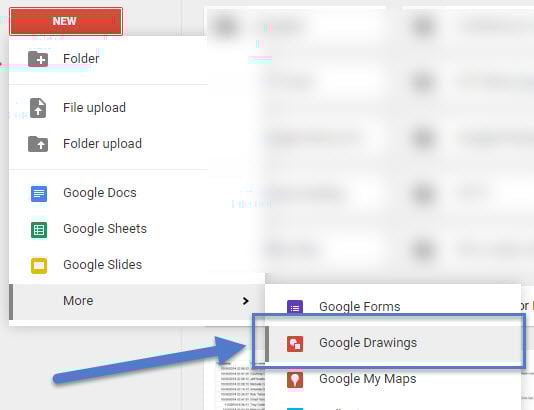
Matt Miller says, “Drawings is one of my favorites of all of Google’s tools. It’s simple to use but powerful and very versatile. In fact, here’s how simple it is. The button panel for creating things (see image above) is made up of lines, shapes, text boxes, images and comments. (The arrow is for selecting items on the page.) Google Drawings is like a digital poster board. Or sheet of paper. Or a blank slate waiting for your great ideas. Sadly, many educators don’t know about it or know what it does. Maybe part of the reason: when you click “new” in your Google Drive, Drawings is under the “more” tab. (What a shame … one of my favorite Google tools treated like a second-class citizen.)”

2. Eight Great Google Tips for Every Educator
http://goo.gl/ajZkDN
This post has eight great tips for educators plus it shows the video below.
3. Seven new features added to Google Classroom
http://goo.gl/bHPfn7
Google Classroom is improving all the time. Here are the latest improvements:
1. Post Questions
2. Reuse Assignments
3. Improved Calendar Integration
4. Bump a post
5. Due dates optional
6. Attach a Google Form to a post
7. YouTube Functionality
4. 8 Creative Uses of Google Drawings You Shouldn’t Ignore
http://goo.gl/EyazTH
Google Drawings isn’t at the forefront of tools. The limelight is reserved for Docs, Sheets, and Slides. But let’s do a reawakening of sorts and click on More to go to the “neglected” siblings. We have seen the usefulness of Google Forms. It’s time to appreciate the versatility of Google Drawings.

5. A Good Google Drive App for Creating Photo Collages
http://goo.gl/ky9V9s
Educational Technology and Mobile learning says, “Here is an excellent Chrome app for creating photo collages. Loupe Collage is a web based tool that is integrated with Google Drive and enables users to easily create beautiful photo collages. Loupe Collage supports a wide variety of shapes. You can turn your photos into hearts, animals, words, logos and many more. You can even draw your own shapes and add them to your collages.”

6. How to make Google Chrome faster, better and prettier
http://goo.gl/GcPovh
Vicky Davis says, “ant to know how to make Google Chrome faster? Want to feel productive? Tired of all of those tabs? Take time to learn how to use Google Chrome better. These quick tips will have your Google Chrome browser faster like new in no time!”

7. Viral classroom: 10 ways to harness viral video power in class
http://goo.gl/uN5gpT
This post by Matt Miller shows some YouTube videos that have gone viral which could be used in your lessons. he says, “If these videos are “must-share” videos, there must be something about them that hooks us in and doesn’t let us go. If we want lessons in our classes to be memorable learning experiences, maybe there’s something in these videos that we can use to leave our students captivated. (Or at least paying attention … we’ll settle for that!). Here are 12 viral YouTube videos and something about them that we can use to hook students into our lessons:

8. Our Favorite Animals - A Google Slides Introduction
http://goo.gl/gKzMev
Richard Byrne shows how he introduces young students to Google Slides. He says, “I've had the opportunity to introduce Google Slides to students as young as first grade. Our Favorite Animals is the title of one of my go-to activities for teaching Google Slides to young students. Here's how the activity works.”

9. Edit images right in Google Slides and Drawings
http://goo.gl/abCj89
Google Slides and Drawings make it easy for you to tell a story and share your ideas. And a big part of storytelling is the images you use to bring a concept to life. Now it’s even easier to get those images just right, because Slides will let you crop, apply shape masks, and add borders to your images right within your presentation.

10. Seven Ways to Use Google Hangouts in the Classroom
http://goo.gl/vD6sBG
Using Google Hangouts is a great way to connect and collaborate with other classrooms. It’s also a powerful tool for making connections, working collaboratively and introducing the wider world to your students. Many educators have embraced Hangouts to enrich both their students’ learning experiences and their own professional development. You can connect students with their peers from around the country, or even from abroad, if time zone differences permit.

11. Now You Add Color Filters to Images In Your Google Slides
http://goo.gl/o4Oscc
Richard Byrne says, “A few months ago Google added the option to crop and add borders to images within your Google Slides. Beginning today you can now add color filters to your images within your Google Slides. To add these Instagram-like filters to your images insert your images as you always have. After inserting an image click on it and you will see a new "image options" menu in the Slides editing toolbar. See my screenshots below for a visual of where to find the new "image options" menu.”

12. Chromebook Deployment & Best practices
https://goo.gl/RsTQZR
This is a slide deck from the EdTechTeam Saudi Arabia Summit by Karl Hehr.

13. 26 Tips for Teaching with Google Apps from the Gooru
https://goo.gl/SWA8N0
The Gooru says, “This guide will teach you to be as tech-savvy as your students. It is meant to acquaint you with Google Apps’ major features and is loaded with best practices and lots of helpful, actionable tips to optimize your investment in Google Apps and improve your students’ learning experience. It’s appropriate for school IT admins, teachers, principals, and anyone else interested in learning more about Google Apps for education. Start implementing these tips today!”

14. 10+ Ways to Get Students Creating CHROMETASTIC Digital Stories!
http://goo.gl/7HANCn
Karly Moura says, “Digital storytelling is an effective and engaging way for students to use digital media production to show what they know. On November 2nd, #TOSAChat welcomed our second guest moderator Ryan O'Donnell (@creativeedtech) to discuss digital storytelling. TONS of fabulous ideas were shared, way too many for just one blog post, so I decided to start with the great Googley goodness and will follow up with a post all about Digital Storytelling with iPad apps, stay tuned! “
 15. Viral classroom: 10 ways to harness viral video power in class
http://goo.gl/uN5gpT
This post by Matt Miller shows some YouTube videos that have gone viral which could be used in your lessons. he says, “If these videos are “must-share” videos, there must be something about them that hooks us in and doesn’t let us go. If we want lessons in our classes to be memorable learning experiences, maybe there’s something in these videos that we can use to leave our students captivated. (Or at least paying attention … we’ll settle for that!). Here are 12 viral YouTube videos and something about them that we can use to hook students into our lessons:
Every week I like to keep a record of what educators and others are posting with regard to Google. Here are 15 from this week. Teachers will love these.
1. Ten engaging Google Drawings activities for classes
http://goo.gl/aU05S3
Matt Miller says, “Drawings is one of my favorites of all of Google’s tools. It’s simple to use but powerful and very versatile. In fact, here’s how simple it is. The button panel for creating things (see image above) is made up of lines, shapes, text boxes, images and comments. (The arrow is for selecting items on the page.) Google Drawings is like a digital poster board. Or sheet of paper. Or a blank slate waiting for your great ideas. Sadly, many educators don’t know about it or know what it does. Maybe part of the reason: when you click “new” in your Google Drive, Drawings is under the “more” tab. (What a shame … one of my favorite Google tools treated like a second-class citizen.)”
2. Eight Great Google Tips for Every Educator
http://goo.gl/ajZkDN
This post has eight great tips for educators plus it shows the video below.
3. Seven new features added to Google Classroom
http://goo.gl/bHPfn7
Google Classroom is improving all the time. Here are the latest improvements:
1. Post Questions
2. Reuse Assignments
3. Improved Calendar Integration
4. Bump a post
5. Due dates optional
6. Attach a Google Form to a post
7. YouTube Functionality
4. 8 Creative Uses of Google Drawings You Shouldn’t Ignore
http://goo.gl/EyazTH
Google Drawings isn’t at the forefront of tools. The limelight is reserved for Docs, Sheets, and Slides. But let’s do a reawakening of sorts and click on More to go to the “neglected” siblings. We have seen the usefulness of Google Forms. It’s time to appreciate the versatility of Google Drawings.

5. A Good Google Drive App for Creating Photo Collages
http://goo.gl/ky9V9s
Educational Technology and Mobile learning says, “Here is an excellent Chrome app for creating photo collages. Loupe Collage is a web based tool that is integrated with Google Drive and enables users to easily create beautiful photo collages. Loupe Collage supports a wide variety of shapes. You can turn your photos into hearts, animals, words, logos and many more. You can even draw your own shapes and add them to your collages.”

http://goo.gl/GcPovh
Vicky Davis says, “ant to know how to make Google Chrome faster? Want to feel productive? Tired of all of those tabs? Take time to learn how to use Google Chrome better. These quick tips will have your Google Chrome browser faster like new in no time!”

7. Viral classroom: 10 ways to harness viral video power in class
http://goo.gl/uN5gpT
This post by Matt Miller shows some YouTube videos that have gone viral which could be used in your lessons. he says, “If these videos are “must-share” videos, there must be something about them that hooks us in and doesn’t let us go. If we want lessons in our classes to be memorable learning experiences, maybe there’s something in these videos that we can use to leave our students captivated. (Or at least paying attention … we’ll settle for that!). Here are 12 viral YouTube videos and something about them that we can use to hook students into our lessons:

http://goo.gl/gKzMev
Richard Byrne shows how he introduces young students to Google Slides. He says, “I've had the opportunity to introduce Google Slides to students as young as first grade. Our Favorite Animals is the title of one of my go-to activities for teaching Google Slides to young students. Here's how the activity works.”

9. Edit images right in Google Slides and Drawings
http://goo.gl/abCj89
Google Slides and Drawings make it easy for you to tell a story and share your ideas. And a big part of storytelling is the images you use to bring a concept to life. Now it’s even easier to get those images just right, because Slides will let you crop, apply shape masks, and add borders to your images right within your presentation.

10. Seven Ways to Use Google Hangouts in the Classroom
http://goo.gl/vD6sBG
Using Google Hangouts is a great way to connect and collaborate with other classrooms. It’s also a powerful tool for making connections, working collaboratively and introducing the wider world to your students. Many educators have embraced Hangouts to enrich both their students’ learning experiences and their own professional development. You can connect students with their peers from around the country, or even from abroad, if time zone differences permit.

11. Now You Add Color Filters to Images In Your Google Slides
http://goo.gl/o4Oscc
Richard Byrne says, “A few months ago Google added the option to crop and add borders to images within your Google Slides. Beginning today you can now add color filters to your images within your Google Slides. To add these Instagram-like filters to your images insert your images as you always have. After inserting an image click on it and you will see a new "image options" menu in the Slides editing toolbar. See my screenshots below for a visual of where to find the new "image options" menu.”

12. Chromebook Deployment & Best practices
https://goo.gl/RsTQZR
This is a slide deck from the EdTechTeam Saudi Arabia Summit by Karl Hehr.

13. 26 Tips for Teaching with Google Apps from the Gooru
https://goo.gl/SWA8N0
The Gooru says, “This guide will teach you to be as tech-savvy as your students. It is meant to acquaint you with Google Apps’ major features and is loaded with best practices and lots of helpful, actionable tips to optimize your investment in Google Apps and improve your students’ learning experience. It’s appropriate for school IT admins, teachers, principals, and anyone else interested in learning more about Google Apps for education. Start implementing these tips today!”

14. 10+ Ways to Get Students Creating CHROMETASTIC Digital Stories!
http://goo.gl/7HANCn
Karly Moura says, “Digital storytelling is an effective and engaging way for students to use digital media production to show what they know. On November 2nd, #TOSAChat welcomed our second guest moderator Ryan O'Donnell (@creativeedtech) to discuss digital storytelling. TONS of fabulous ideas were shared, way too many for just one blog post, so I decided to start with the great Googley goodness and will follow up with a post all about Digital Storytelling with iPad apps, stay tuned! “

http://goo.gl/uN5gpT
This post by Matt Miller shows some YouTube videos that have gone viral which could be used in your lessons. he says, “If these videos are “must-share” videos, there must be something about them that hooks us in and doesn’t let us go. If we want lessons in our classes to be memorable learning experiences, maybe there’s something in these videos that we can use to leave our students captivated. (Or at least paying attention … we’ll settle for that!). Here are 12 viral YouTube videos and something about them that we can use to hook students into our lessons:
Monday, November 9, 2015
I love Google #32
Every week I like to keep a record of what educators and others are posting with regard to Google. Here are 10 from this week. Teachers will love these.
2. Microsoft Releases New Office Extension For Google Chrome
This is great news for Chrome users and even Chromebook users. Microsoft Office team released, a few days ago, a new Google Chrome extension that lets you create and open Word, Excel, PowerPoint, OneNote and Sway documents using Office Online right from the Chrome browser. You can also use the extension to open and view existing Office documents stored on OneDrive, on OneDrive for Business and on your computer right from Chrome.

3. A Beginner’s Guide to Google Sheets for Educators
http://goo.gl/lkr2Xs
 4. Google Classroom is not an LMS – it’s better!
http://goo.gl/UxqaOE
Tom Malaney says: “Even the leading expert on Google Classroom, Alice Keeler, says it is not an LMS. She argues that Google Classroom is neither an LMS nor a CMS (Content Management System) because it does not automate course enrollment, have a grade book, or house content. Alice Keeler is right. Google Classroom is not an LMS, it’s better. She goes on to define Google Classroom as “Google Drive Management.” This description is accurate. Google Drive Management is more valuable to students and teachers than what an LMS provides because Google Apps for Education (GAFE) are essential for collaboration and feedback. Students hone future-ready skills when they collaborate and give and receive feedback in the Google ecosystem. Google Classroom automates the distribution of Google Drive files. Conventional LMSs force teachers and students into time-wasting workarounds to access and share Google Drive files.”

5. How to Make a Copy of a Google Slides Presentation Marked as View Only
http://goo.gl/SR1hcH
Richard Byrne says, “Last night I posted a copy of my iPad Summit presentation. The presentation was created in Google Slides. I forgot to share it as view only and instead only selected publish to the web in my settings. I have changed that setting so that now anyone who has a Google Account will be able to make a copy of the slides for themselves. To make a copy of a Google Slides presentation that you find on the web, click on the gear icon and select "open editor." When the editor opens (you'll need to be signed into your Google Account) select "make copy" from the File menu.”

6. 25 Google Drive Tips You’ve Probably Never Heard Before
https://goo.gl/4gB9hs
Process Street says, “Recently I moved over from Dropbox to Google Drive and found a few unexpected benefits. At first I had a little trouble managing the space since the 1TB on my Google Drive was bigger than my HDD, but after I got that sorted I started to learn some of the deeper features of Google Drive, some of which are pretty cool. Below is a list of the top tips and tricks I have learned from playing with Google Drive over the last few months.”

7. The Kids' Guide to Google Search
https://goo.gl/VWEpZS
Every kid knows how to Google, but do they know how to Google well? A wealth of built-in -- but sometimes hidden -- features can help kids find the information they need much more efficiently than their usual shot-in-the-dark searches. A little Google technique can open up a world of trusted facts, homework boosters, and cool tricks to impress their friends (or their parents).

8. Seven Tools for Adding Questions and Notes to Videos
http://goo.gl/0TuHJu
Short videos from YouTube and other sources can be quite helpful in introducing topics to students and or reinforcing concepts that you have taught. Watching the video can be enough for some students, it's better if we can call students' attention to specific sections of videos while they are watching them. The following tools allow you to add comments and questions to videos that you share with your students.

9. OpenEd Offers Thousands of Quizzes and Review Materials to Share in Google Classroom
http://goo.gl/bKJ6bF
OpenEd is a service that has offers a massive catalog of educational videos, games, and practice assessments that you can browse by topic, grade level, or Common Core standard. Today, OpenEd announced an improved integration with Google Classroom.
There are two ways that you can use OpenEd resources with Google Classroom. First, you can share resources from OpenEd to your Google Classroom classes by using the "share to Google Classroom" button within OpenEd resources. Second, you can now import your Google Classroom roster into OpenEd. Importing your roster will allow you to create collections of resources to share with your students instead of just sharing individual items.

10. Three easy ways to open and edit Office files on your Chromebook.
http://goo.gl/8Ti2Mi
There are three easy ways to work on Office files on your Chromebook device. Using these three tips, you will be able to open and edit your Office files and also share them with others and start collaboratively editing them in real time. For these tips to work you need to make sure your Chromebook software is up to date and that you have the newest version of Google Drive.

11. Google Classroom – 9 tips for attaching Drive files
http://goo.gl/RKnwPO

1. The Golden treasures of Google
In this presentation Casey Bell shares 30 Google treasures to try out. These are worth looking into.

That's it for now. The rest of the Google links posts can be found at http://goo.gl/CNO3M2

2. Microsoft Releases New Office Extension For Google Chrome
This is great news for Chrome users and even Chromebook users. Microsoft Office team released, a few days ago, a new Google Chrome extension that lets you create and open Word, Excel, PowerPoint, OneNote and Sway documents using Office Online right from the Chrome browser. You can also use the extension to open and view existing Office documents stored on OneDrive, on OneDrive for Business and on your computer right from Chrome.
3. A Beginner’s Guide to Google Sheets for Educators
http://goo.gl/lkr2Xs
Jenny Kessman says, “The Google Apps for Education ecosystem provides teachers and students with countless ways to stay organized, get creative, and collaborate with others. One application that sometimes gets overlooked, though, is Google Sheets. Yeah, we know, spreadsheets aren’t the most fun or fascinating tool to play with, but there are powerful possibilities for using Google Sheets in education. Here are 22 ways you can get started with using Google Sheets in the classroom.

http://goo.gl/UxqaOE
Tom Malaney says: “Even the leading expert on Google Classroom, Alice Keeler, says it is not an LMS. She argues that Google Classroom is neither an LMS nor a CMS (Content Management System) because it does not automate course enrollment, have a grade book, or house content. Alice Keeler is right. Google Classroom is not an LMS, it’s better. She goes on to define Google Classroom as “Google Drive Management.” This description is accurate. Google Drive Management is more valuable to students and teachers than what an LMS provides because Google Apps for Education (GAFE) are essential for collaboration and feedback. Students hone future-ready skills when they collaborate and give and receive feedback in the Google ecosystem. Google Classroom automates the distribution of Google Drive files. Conventional LMSs force teachers and students into time-wasting workarounds to access and share Google Drive files.”

5. How to Make a Copy of a Google Slides Presentation Marked as View Only
http://goo.gl/SR1hcH
Richard Byrne says, “Last night I posted a copy of my iPad Summit presentation. The presentation was created in Google Slides. I forgot to share it as view only and instead only selected publish to the web in my settings. I have changed that setting so that now anyone who has a Google Account will be able to make a copy of the slides for themselves. To make a copy of a Google Slides presentation that you find on the web, click on the gear icon and select "open editor." When the editor opens (you'll need to be signed into your Google Account) select "make copy" from the File menu.”

6. 25 Google Drive Tips You’ve Probably Never Heard Before
https://goo.gl/4gB9hs
Process Street says, “Recently I moved over from Dropbox to Google Drive and found a few unexpected benefits. At first I had a little trouble managing the space since the 1TB on my Google Drive was bigger than my HDD, but after I got that sorted I started to learn some of the deeper features of Google Drive, some of which are pretty cool. Below is a list of the top tips and tricks I have learned from playing with Google Drive over the last few months.”

7. The Kids' Guide to Google Search
https://goo.gl/VWEpZS
Every kid knows how to Google, but do they know how to Google well? A wealth of built-in -- but sometimes hidden -- features can help kids find the information they need much more efficiently than their usual shot-in-the-dark searches. A little Google technique can open up a world of trusted facts, homework boosters, and cool tricks to impress their friends (or their parents).

8. Seven Tools for Adding Questions and Notes to Videos
http://goo.gl/0TuHJu
Short videos from YouTube and other sources can be quite helpful in introducing topics to students and or reinforcing concepts that you have taught. Watching the video can be enough for some students, it's better if we can call students' attention to specific sections of videos while they are watching them. The following tools allow you to add comments and questions to videos that you share with your students.

9. OpenEd Offers Thousands of Quizzes and Review Materials to Share in Google Classroom
http://goo.gl/bKJ6bF
OpenEd is a service that has offers a massive catalog of educational videos, games, and practice assessments that you can browse by topic, grade level, or Common Core standard. Today, OpenEd announced an improved integration with Google Classroom.
There are two ways that you can use OpenEd resources with Google Classroom. First, you can share resources from OpenEd to your Google Classroom classes by using the "share to Google Classroom" button within OpenEd resources. Second, you can now import your Google Classroom roster into OpenEd. Importing your roster will allow you to create collections of resources to share with your students instead of just sharing individual items.

10. Three easy ways to open and edit Office files on your Chromebook.
http://goo.gl/8Ti2Mi
There are three easy ways to work on Office files on your Chromebook device. Using these three tips, you will be able to open and edit your Office files and also share them with others and start collaboratively editing them in real time. For these tips to work you need to make sure your Chromebook software is up to date and that you have the newest version of Google Drive.

11. Google Classroom – 9 tips for attaching Drive files
http://goo.gl/RKnwPO
Alice Keeler says, “Adding files to Google Classroom is not the same as searching for files in Google Drive. Here are some tips to help you maximize your efficiency with attaching Google Drive files to Google Classroom.”

That's it for now. The rest of the Google links posts can be found at http://goo.gl/CNO3M2
Friday, July 24, 2015
I love Google #23
Every week I like to keep a record of what folk, especially educators, re saying about Google in the blogosphere. Here are 20 from this week.
Sunday, May 10, 2015
Try using Google Classroom. Here are 10 steps to getting started...
There’s a lot of excitement about the Learning Management System, Google Classroom, currently with new features appearing almost weekly. This is the first in a series of posts about this amazing application.

Are you a Google Apps school? Only accounts that are associated with Google Apps for Education are able to utilize Google Classroom. Here are some first steps in the process
1. Log in
Assuming you are a GAFE (Google Apps for Education) and you are logged in to your account go to http://classroom.google.com to start your login and setup process.
2. Get started
Click on the + sign of the opening page of classroom

3. Create a class
You’ll be prompted to create a class. It’s a simple as that


4. Choose a theme
Once in you’ll land on a preset theme as the header of your classroom with an option to choose another theme or pattern from the Gallery – you can even upload your own photo for the theme.


If you have uploaded a photo of yourself to your Google account it will appear here f you select a pattern.

5. Invite your students to join Classroom

6. Complete your 'About' page
It also has a link to the Google Drive folder that is automatically created for each course to house resources.

7. Add your students
You can either give them the code that has automatically been generated to join with or you can invite them by email. If selecting the code option which is more suitable for bigger classes the students would just need to go to http://classroom.google.com and sign in, then click the ‘+’ icon and click Join Class.

8. Add an announcement
Go back to your stream and either add an announcement or an assignment.

If selecting an assignment you can upload an attachment, insert a Google Drive document, add a video from YouTube or insert a link. Once yiu have completed your information click on POST.

You will see your announcement as your class sees it.

9. Add an assignment
If you are adding an assignment click on ‘Add an assignment’ and follow the links. Fill in all the required details and even watch the tour if this is your first time round! The tour takes you into the process step-by-step.

10. Review what you have just learned
To watch a video on this process take a look at Amy Mayer’s video entitled ‘Getting Started with Google Classroom’ found at: https://www.youtube.com/watch?v=NIfXzJMLsMQ
In the next post on Google Classroom we’ll add how to manage, grade and review the assignments that are returned to you.

Are you a Google Apps school? Only accounts that are associated with Google Apps for Education are able to utilize Google Classroom. Here are some first steps in the process
1. Log in
Assuming you are a GAFE (Google Apps for Education) and you are logged in to your account go to http://classroom.google.com to start your login and setup process.
2. Get started
Click on the + sign of the opening page of classroom

3. Create a class
You’ll be prompted to create a class. It’s a simple as that


4. Choose a theme
Once in you’ll land on a preset theme as the header of your classroom with an option to choose another theme or pattern from the Gallery – you can even upload your own photo for the theme.


If you have uploaded a photo of yourself to your Google account it will appear here f you select a pattern.

5. Invite your students to join Classroom

6. Complete your 'About' page
It also has a link to the Google Drive folder that is automatically created for each course to house resources.

7. Add your students
You can either give them the code that has automatically been generated to join with or you can invite them by email. If selecting the code option which is more suitable for bigger classes the students would just need to go to http://classroom.google.com and sign in, then click the ‘+’ icon and click Join Class.

8. Add an announcement
Go back to your stream and either add an announcement or an assignment.

If selecting an assignment you can upload an attachment, insert a Google Drive document, add a video from YouTube or insert a link. Once yiu have completed your information click on POST.

You will see your announcement as your class sees it.

9. Add an assignment
If you are adding an assignment click on ‘Add an assignment’ and follow the links. Fill in all the required details and even watch the tour if this is your first time round! The tour takes you into the process step-by-step.

10. Review what you have just learned
To watch a video on this process take a look at Amy Mayer’s video entitled ‘Getting Started with Google Classroom’ found at: https://www.youtube.com/watch?v=NIfXzJMLsMQ
In the next post on Google Classroom we’ll add how to manage, grade and review the assignments that are returned to you.
Friday, April 3, 2015
I love Google #9
After looking through all the Google posts that were shared to my various subscriptions recently these are the ten that have caught my eye so far. I have saved these using Listly (http://list.ly.com which is a great way to present a list of sites)
Friday, March 20, 2015
I love Google #8
This is another of my weekly round ups of Google posts that have caught my eye during the week. Once again it is presented using the useful web curation tool List.ly http://list.ly/
Friday, March 13, 2015
I love Google #7
I love Google! After looking through all the Google posts that were shared to my various subscriptions during this week and last week, these are the ten that have caught my eye so far.
1. 3 Good Chrome Extensions to Convert Web Pages to PDFs .http://goo.gl/I3GDt9 You could use these extensions to convert long articles ( for instance articles from Scientific magazines) into PDFs which I would usually download into my computer. In this way I have a PDF format of the article which I can access and read without the need for Internet connection.

2. Getting Googley with Infographics
from Rachelle Wootenand and Stephanie Jernigan http://goo.gl/6jccLM This post has some great ideas for working on infogrpahics in lessons. There is a presentation link as well.

3. ‘Google Stuff’
from Tammy Worcester http://tammyworcester.com/googlestuff/ On this page, you’ll find an index of all of Tammy’s Google-related resources. This is a really useful collection of Google applications for a quick referral.

4. ‘A Must Have Chrome Extension for Teachers’ http://goo.gl/nefER5. Extensity basically helps you instantly enable or disable extensions on your Chrome. It does three main things:

5. 6 new free Google tools to upgrade your classroom by Matt Miller
http://goo.gl/G2rKeD I always love Matt Miller from Dich That textbook’s posts. In this post he talks about six sites which will help upgrade what you do in class if you and your students utilize Google Apps frequently. Not all are technically products of Google, but they all improve work done on Google apps.

6. ÝouTube tips and tricks’This is a collection of resources on YouTube from Wesley Fryer http://wiki.wesfryer.com/Home/handouts/youtube This is a great collection of resources that Wesley fryer used for his workshop on YouTube.

7. 'A Very Good Google Doc App for Helping Students with Their Learning' http://goo.gl/SlA1Iw Have you tried the Text Help Study Skills app? It allows them to select, highlight, and group content for review and learning.

8. Two Good Google Drive Templates to Create Fake Facebook Pages http://goo.gl/wDhe7j. The Fake Facebook templates provided here are created using Google Drawing meaning that when you click on “use this template” button associated with each of them, a copy of the document will be opened in your Drawing.

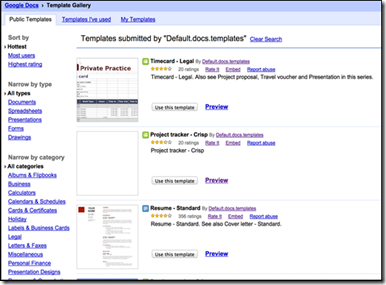
9. 10 Excellent Google Drive Templates for Teachers http://goo.gl/m7SiUC. The template gallery that Google Drive offers features a wide variety of templates pertaining to different topics from templates on albums and flipbooks to templates for resumes and cover letters
10. ‘Slide Carnival’
Have you seen this lovely site? http://www.slidescarnival.com/ Free templates for Google Slides presentation

1. 3 Good Chrome Extensions to Convert Web Pages to PDFs .http://goo.gl/I3GDt9 You could use these extensions to convert long articles ( for instance articles from Scientific magazines) into PDFs which I would usually download into my computer. In this way I have a PDF format of the article which I can access and read without the need for Internet connection.
2. Getting Googley with Infographics
from Rachelle Wootenand and Stephanie Jernigan http://goo.gl/6jccLM This post has some great ideas for working on infogrpahics in lessons. There is a presentation link as well.

3. ‘Google Stuff’
from Tammy Worcester http://tammyworcester.com/googlestuff/ On this page, you’ll find an index of all of Tammy’s Google-related resources. This is a really useful collection of Google applications for a quick referral.

4. ‘A Must Have Chrome Extension for Teachers’ http://goo.gl/nefER5. Extensity basically helps you instantly enable or disable extensions on your Chrome. It does three main things:
- Keep your browser fast - disable extensions that you won't use right away.
- Keep your toolbar clean
- Ideal companion for extensions collectors.

5. 6 new free Google tools to upgrade your classroom by Matt Miller
http://goo.gl/G2rKeD I always love Matt Miller from Dich That textbook’s posts. In this post he talks about six sites which will help upgrade what you do in class if you and your students utilize Google Apps frequently. Not all are technically products of Google, but they all improve work done on Google apps.
6. ÝouTube tips and tricks’This is a collection of resources on YouTube from Wesley Fryer http://wiki.wesfryer.com/Home/handouts/youtube This is a great collection of resources that Wesley fryer used for his workshop on YouTube.
7. 'A Very Good Google Doc App for Helping Students with Their Learning' http://goo.gl/SlA1Iw Have you tried the Text Help Study Skills app? It allows them to select, highlight, and group content for review and learning.

8. Two Good Google Drive Templates to Create Fake Facebook Pages http://goo.gl/wDhe7j. The Fake Facebook templates provided here are created using Google Drawing meaning that when you click on “use this template” button associated with each of them, a copy of the document will be opened in your Drawing.
9. 10 Excellent Google Drive Templates for Teachers http://goo.gl/m7SiUC. The template gallery that Google Drive offers features a wide variety of templates pertaining to different topics from templates on albums and flipbooks to templates for resumes and cover letters

10. ‘Slide Carnival’
Have you seen this lovely site? http://www.slidescarnival.com/ Free templates for Google Slides presentation

Subscribe to:
Posts (Atom)